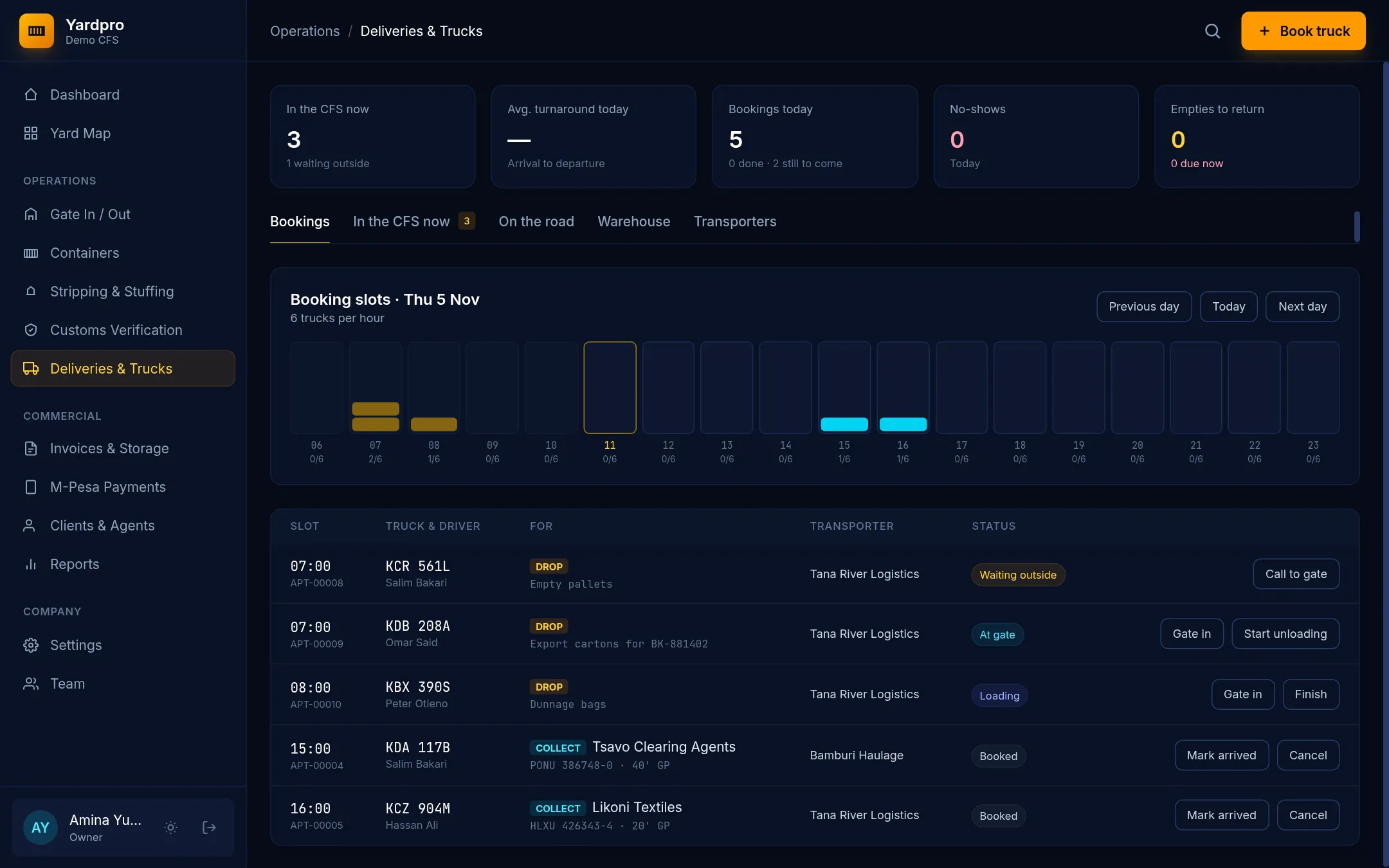
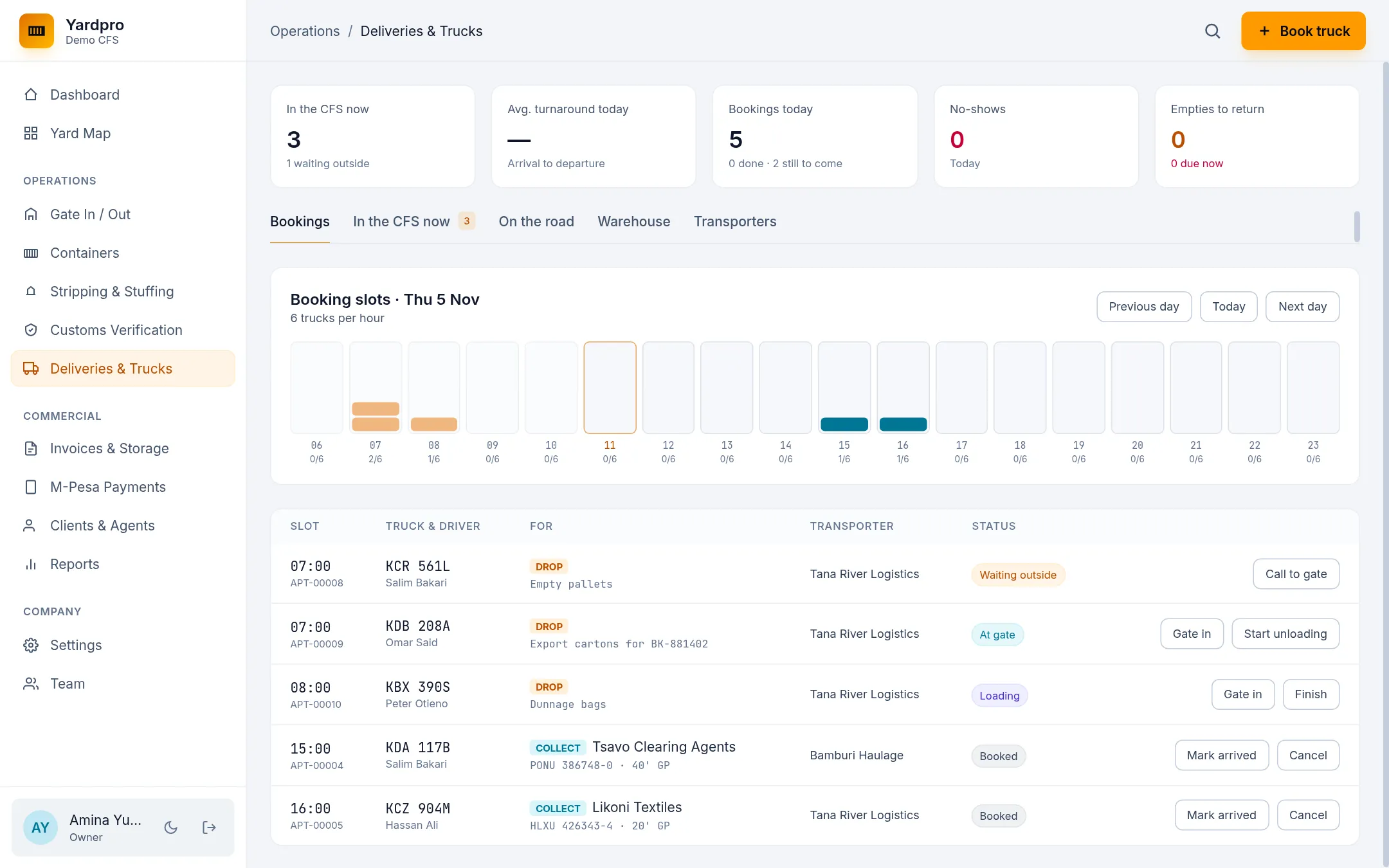
Deliveries & Trucks shows the day’s slots and every booking.
Make a booking
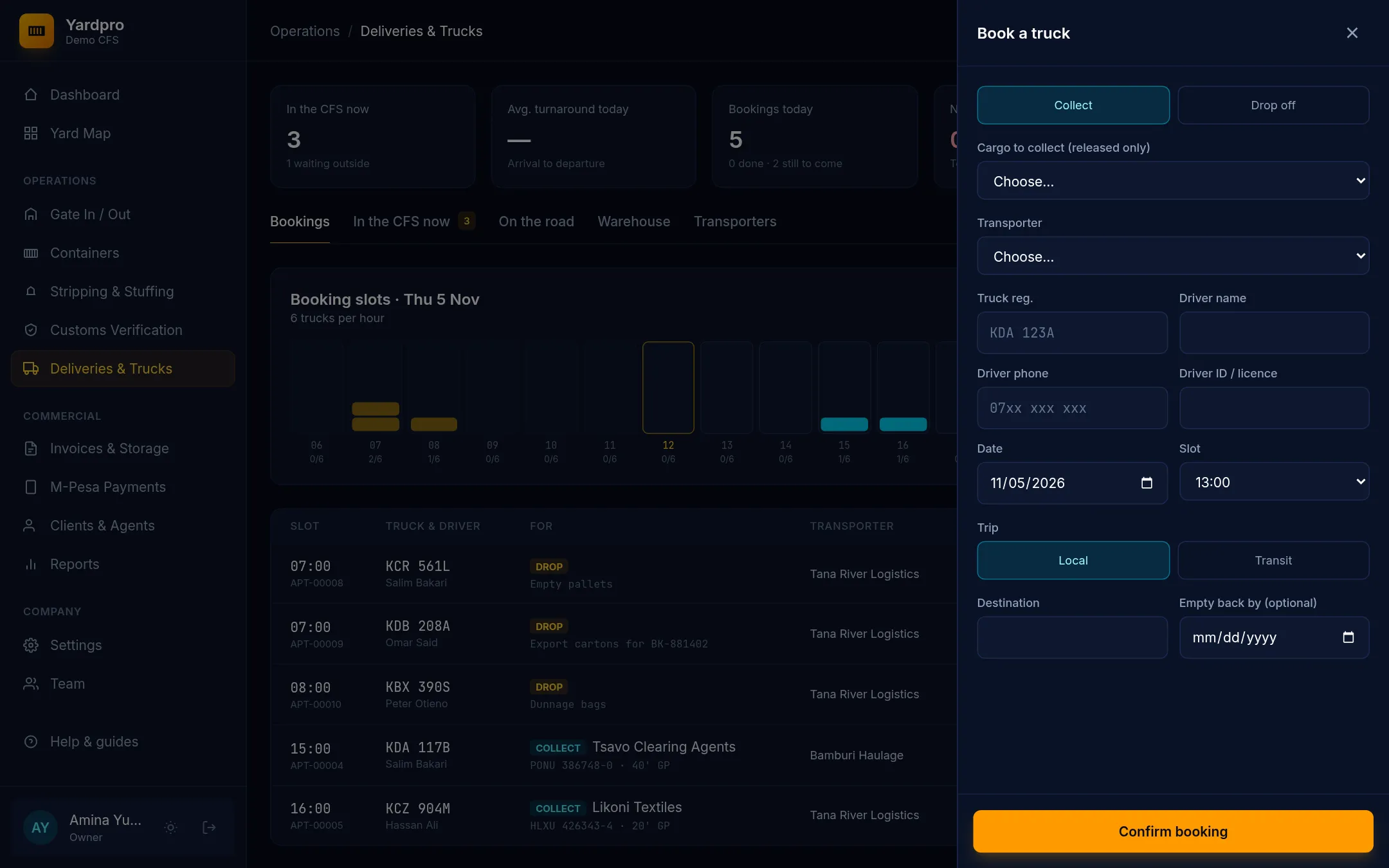
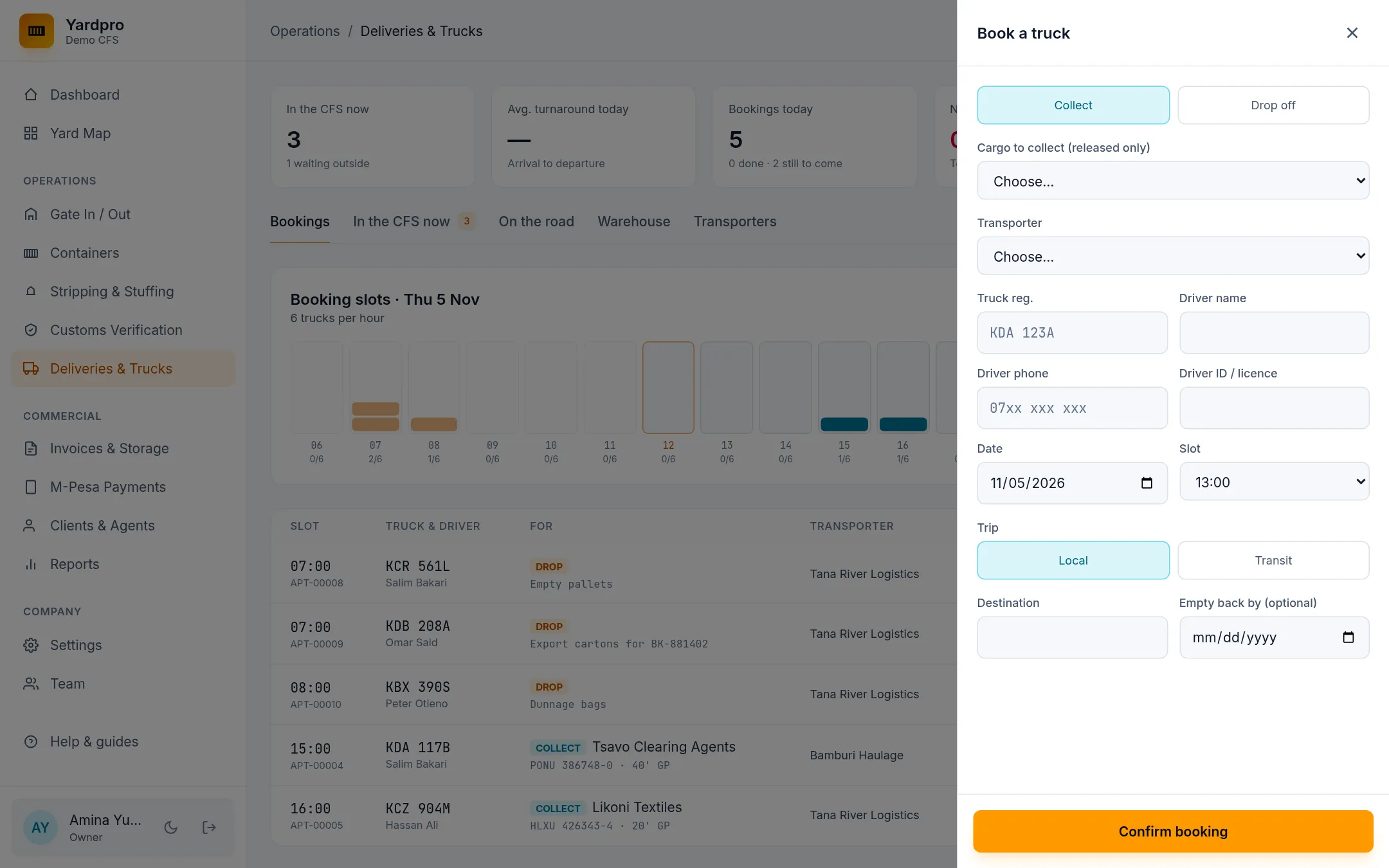
- Choose Book truck.
- Choose Collect or Drop off.
- For a collection, choose the cargo. Only released containers and released loose cargo are listed.
- For a drop off, say what the truck is bringing.
- Choose the transporter, then enter the Truck reg., Driver name, Driver phone and Driver ID / licence.
- Choose the Date and Slot, and whether the Trip is Local or Transit.
- Choose Confirm booking.
Yardpro refuses a booking when:
- The slot’s hour is full.
- The transporter’s insurance has expired.
- The trip is Transit and the transporter has no transit bond.
- The truck already has an open booking.
- The container already has a truck booked.
Follow it through the site
Move each truck on from its row as it reaches each stage: Waiting outside, At gate, Loading, then Departed. The In the CFS now tab shows who’s inside and for how long.
Note: A truck carrying a container leaves through the Gate screen, which records the box and prints the gate pass.
No-shows and cancelling
If a truck is late, choose No-show. Choose Rebook next hour to give it a new slot, or Cancel to call it off.
On the road
The On the road tab tracks trucks that have left. Choose Mark delivered and enter who signed for it. If an empty is due back, choose Mark empty returned when it arrives.