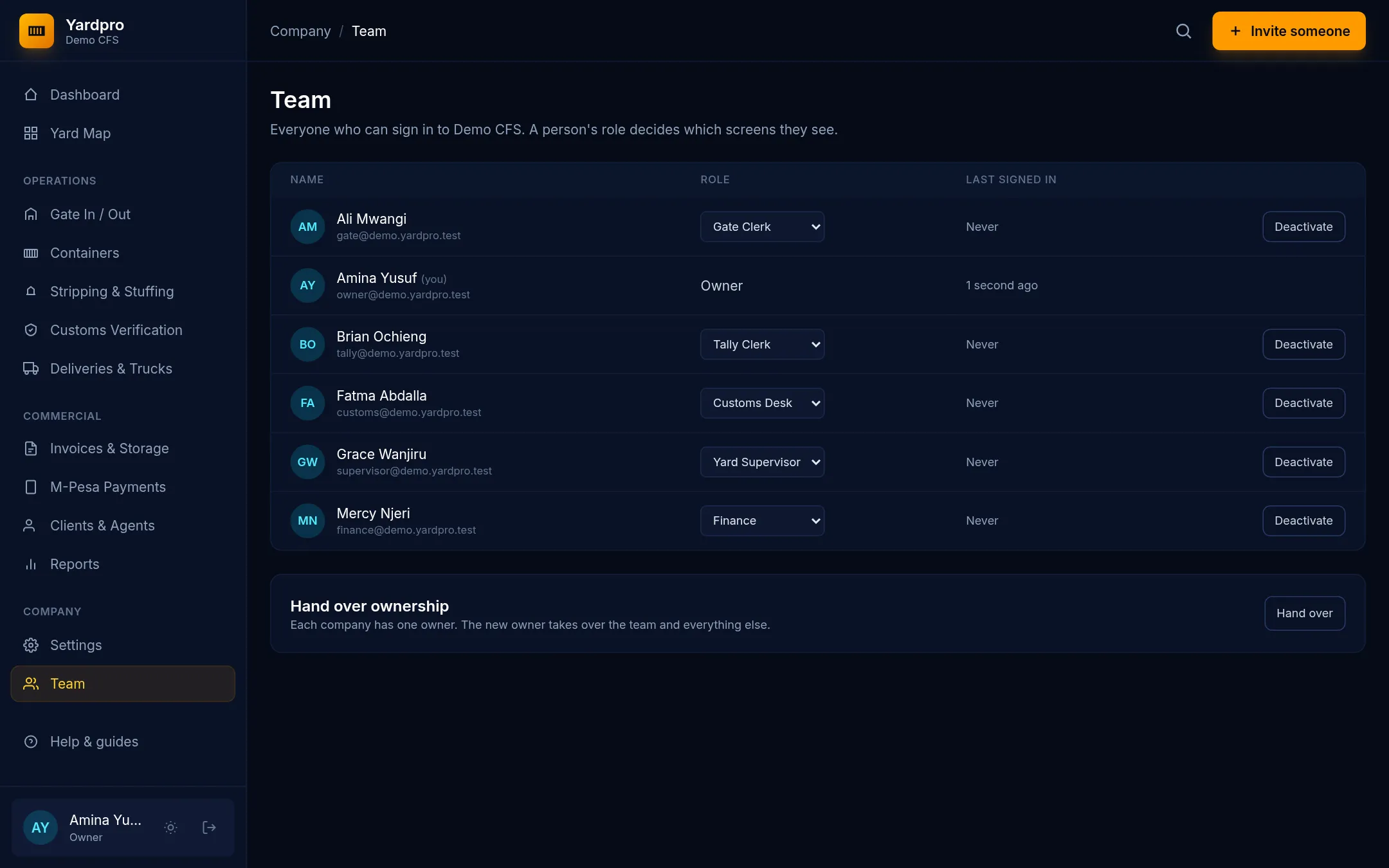
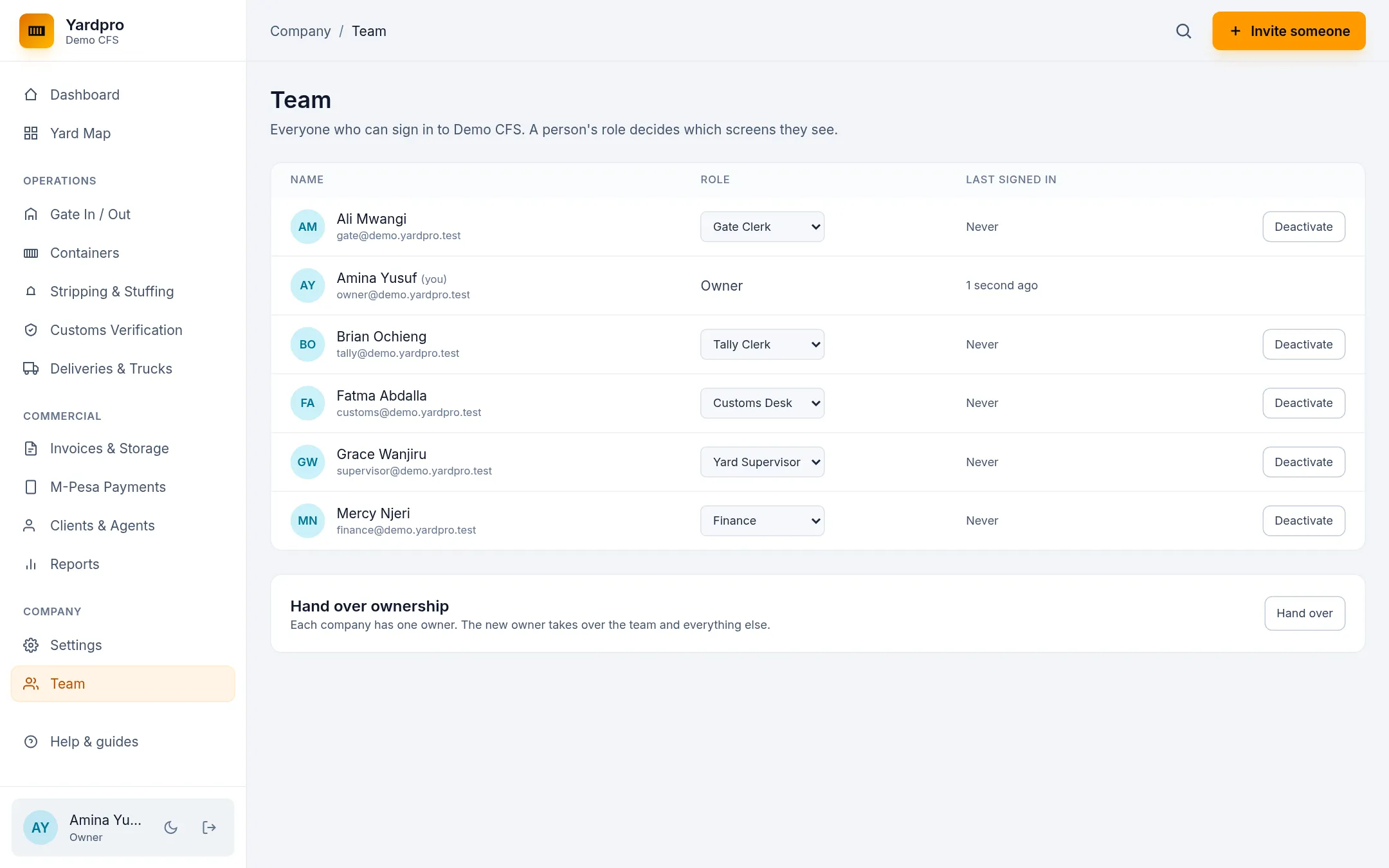
Each person signs in with their own account, and their role decides which screens they can open. Only the owner can manage the team.
Invite someone
- Open Team and choose Invite someone.
- Enter their Full name and Work email, and choose a role.
- Choose Send invitation.
They get an email with a link to set their password. The link lasts 7 days. Until they join, they show under Waiting to join, where you can choose Send again or Cancel.
What each role can do
| Role | Screens |
|---|---|
| Owner | Everything, including Team and Settings |
| Yard Supervisor | Yard Map, Gate, Stripping, Verification, Deliveries and Reports |
| Gate Clerk | Yard Map, Gate and Deliveries |
| Customs Desk | Yard Map, Verification and Clients |
| Tally Clerk | Yard Map and Stripping |
| Finance | Invoices, M-Pesa, Clients and Reports |
Everyone can open the Dashboard and Containers. Only people who can open Invoices see money figures.
A few actions depend on the role too:
- Customs status can be changed by the Owner, Yard Supervisor and Customs Desk.
- Overrides and yard moves are for the Owner and Yard Supervisor.
- Credit holds are for the Owner and Finance.
Change or remove someone
Choose a new role next to their name to change it. Choose Deactivate when someone leaves: they can’t sign in any more, but their name stays on the records they created. Reactivate brings them back.
Hand over ownership
Each company has one owner. To pass it to someone else:
- Open Team and choose Hand over.
- Choose the New owner and Your new role.
- Enter Your password and confirm.
Important: You lose owner access straight away, so check you’ve chosen the right person. Only the new owner can give it back.