Open Gate In / Out and choose Gate Out.
Look it up
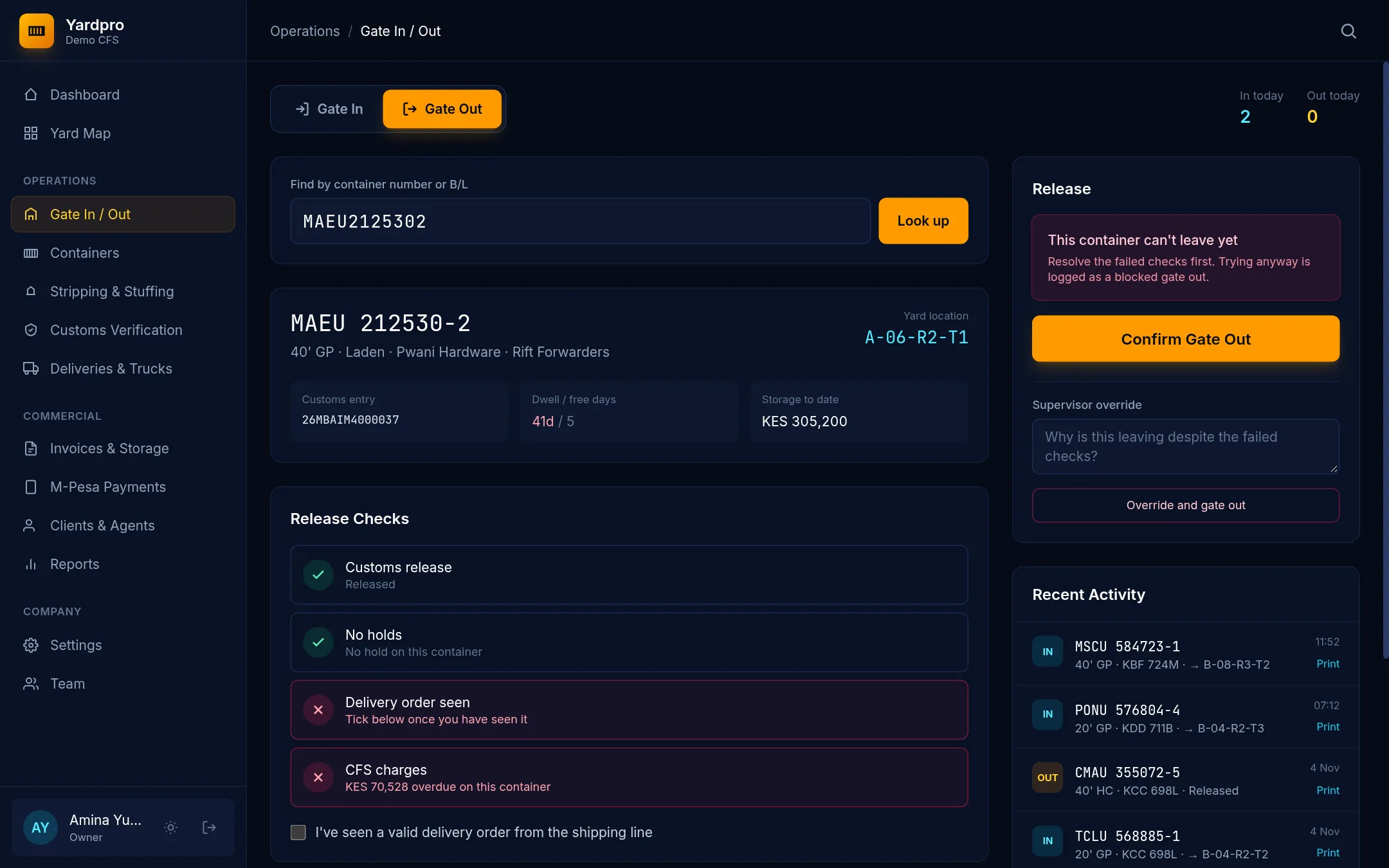
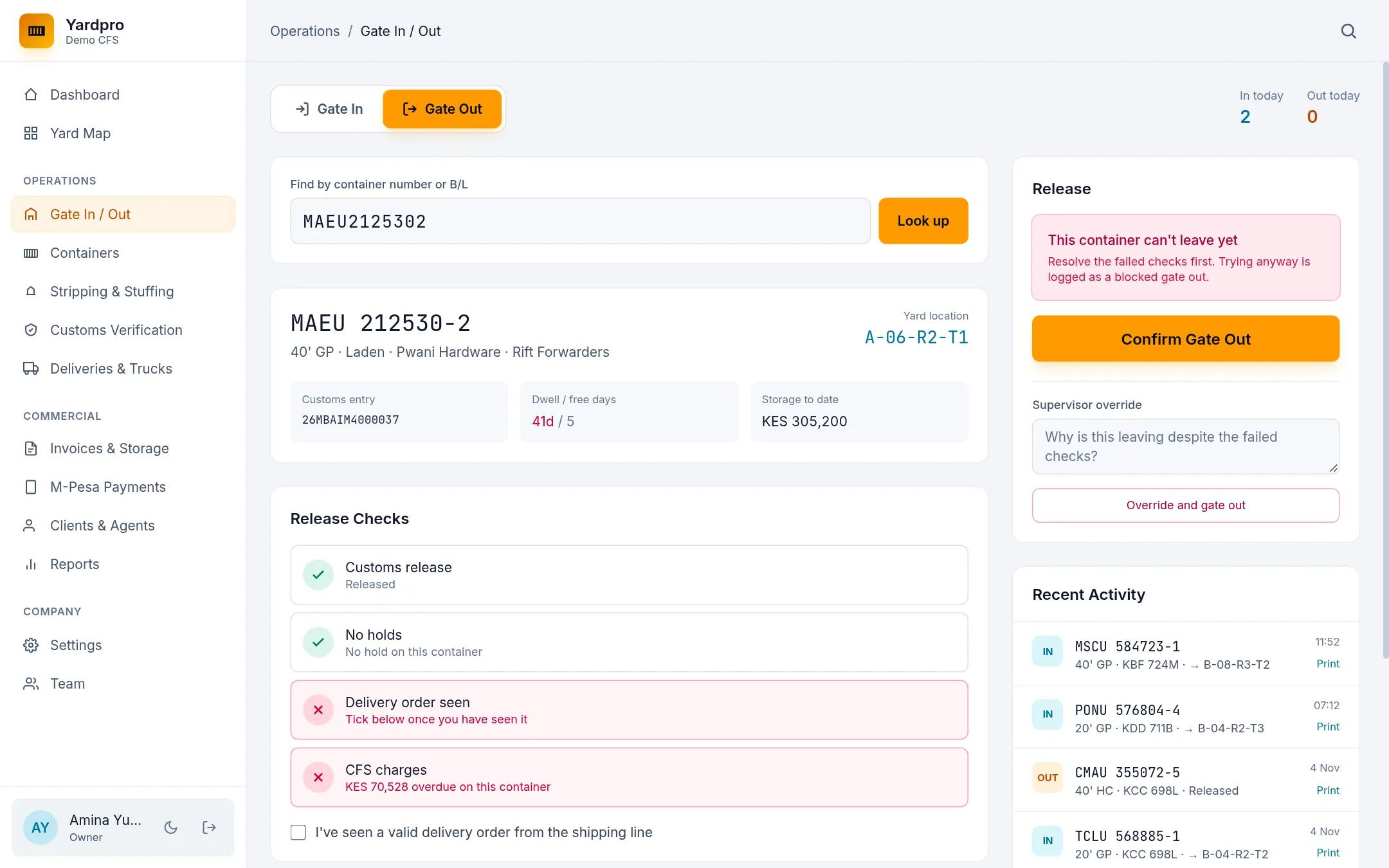
Enter the container number or B/L and choose Look up. Yardpro shows the box, its location, its dwell and its Release Checks.
The release checks
| Check | What it needs |
|---|---|
| Customs release | The container’s status is Released |
| No holds | It isn’t on customs hold |
| No open job | No stripping or stuffing job is open on it |
| Delivery order seen | You’ve ticked that you’ve seen a valid delivery order (laden boxes) |
| CFS charges | The money check passes (see below) |
| Truck matches booking | The truck is the one booked, if there’s a booking |
How the money check works
- Laden and stripped boxes must have CFS handling on an invoice.
- Cash clients must be billed and paid in full.
- Credit clients can leave within their terms, unless they’re on hold or the invoices on this box are overdue.
Let it out
- Enter the truck and driver under Truck Collecting.
- Tick the delivery order box if it’s shown.
- Choose Confirm Gate Out.
- Print the gate pass for the driver.
If it’s blocked
The failed check tells you what’s wrong. Fix that first: ask Finance to bill or take payment, or ask the Customs Desk about its status. See Why was this box blocked?
Trying to gate out a blocked box is written to the gate log.
Supervisor override
An Owner or Yard Supervisor can let a box out despite failed checks. Under Supervisor override, give the reason and choose Override and gate out.
Important: The reason, the person and the time stay on the record for good, and the reason prints on the gate pass. Use it only when you’d be happy to explain it later.